For businesses

Your work vehicles, your drivers and your office, in one place.

Fleet is for contractors and businesses with 5 to 1,000 vehicles. Drivers use the Common Sense Auto app on their phones. The office uses a web console on a computer.

We set up each fleet personally. Tell us about your business and we will write back. Nothing is bought on this website: you tell us about your business, and we set it up with you.

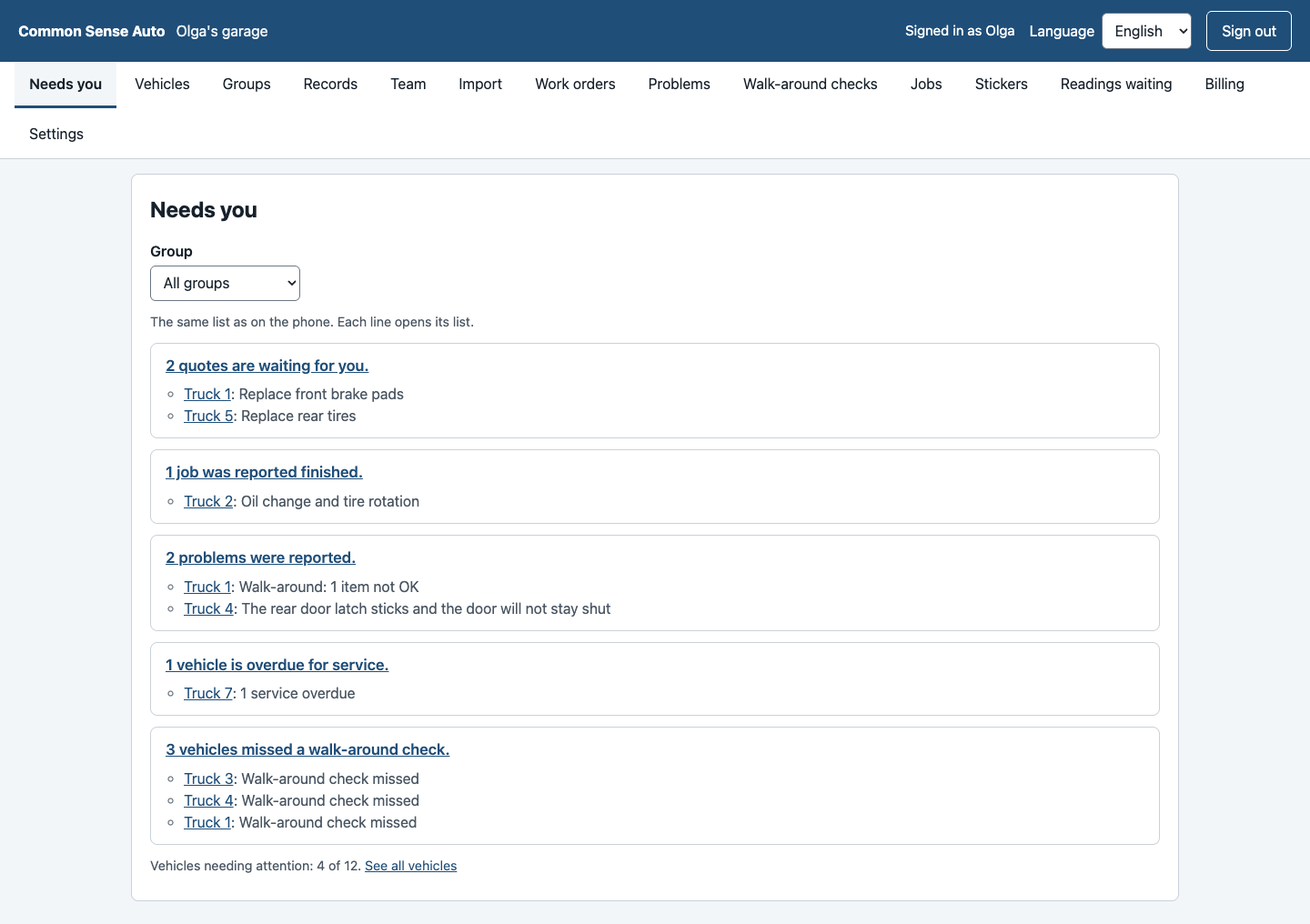
The office console's Needs you page for a 12-vehicle fleet: quotes waiting, a finished job, reported problems and an overdue service.
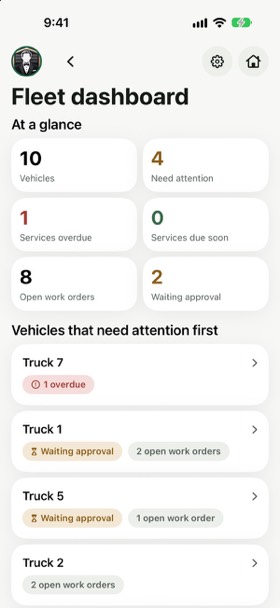
The fleet dashboard on the owner's phone: 10 vehicles, 4 need attention, 1 service overdue and 2 waiting approval.

Who it is for

A contractor with a few trucks. A landscaper, a plumber, an electrician. A delivery business, a rental business, a company with a yard full of vans. From 5 vehicles to 1,000, cars, trucks, vans, motorcycles and campers, in the same app.

The owner sees everything. Managers help run the fleet. Drivers see only the vehicles and jobs that are theirs.

On the phone

What the driver has

Report a problem

A sentence, up to four photos, and the question “Is it safe to drive?” with the answers Yes, No and Not sure. The answer is the driver’s own and is always shown as theirs. The owner and the managers see it in a Problems list and get an alert, and in one tap they turn it into a work order.
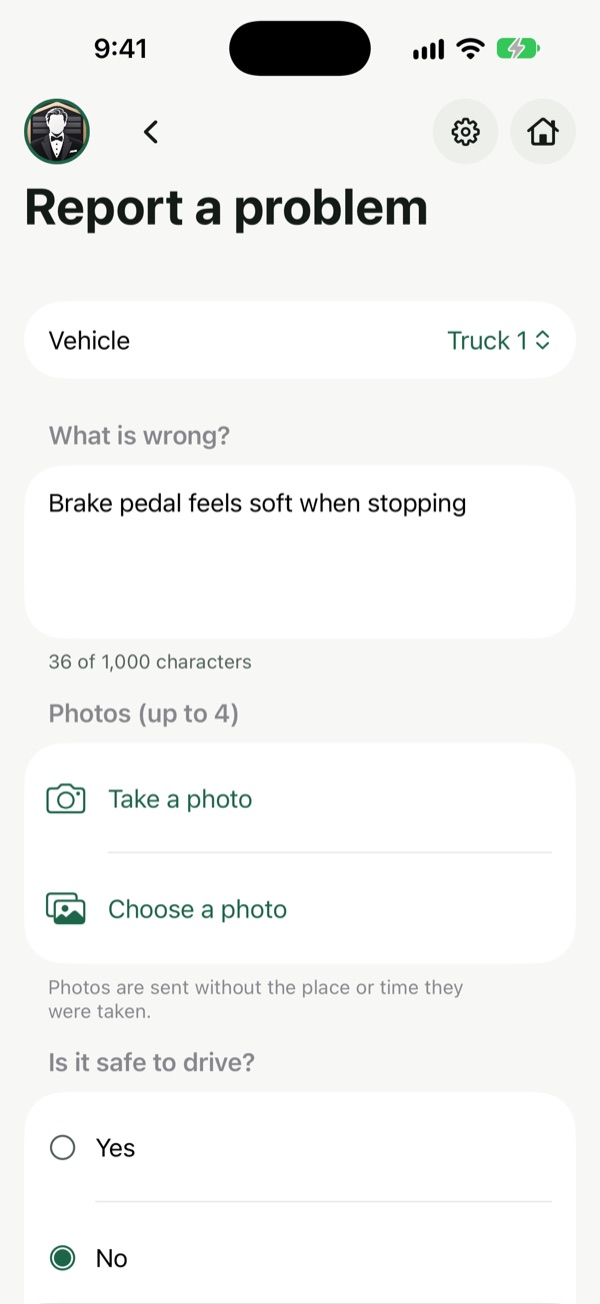
A driver's Report a problem screen: truck, what is wrong, photos, and the safe-to-drive question.
The driver's Report a problem screen.
A driver reports a problem; the manager turns it into a work order.

Walk-around check

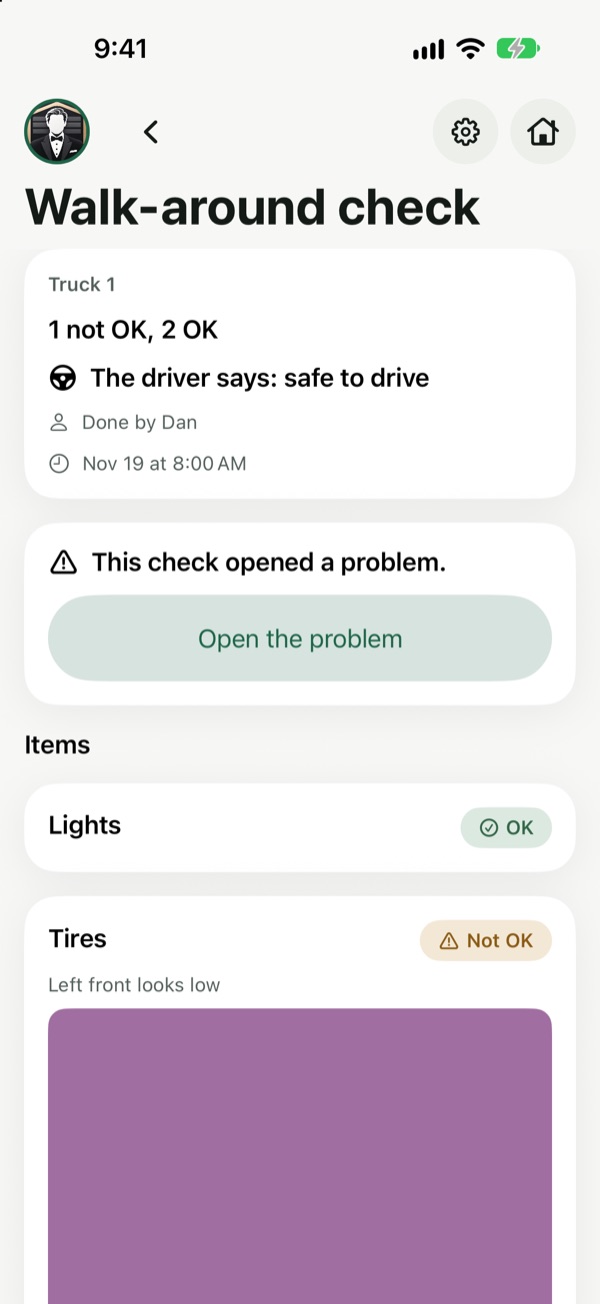
Walk round the vehicle and mark each item OK, Not OK or Not needed, with a note and a photo on anything that is not OK. It works with no signal: the check is saved on the phone and sent when the phone can. A check with something not OK opens a problem by itself.

A walk-around check done by a driver: 1 not OK, 2 OK, “safe to drive”, the check opened a problem, and the item list.
A finished walk-around check. The check opened a problem.

Jobs sent by the manager

A manager gives one driver a job: what to do, an address typed as text, a day and, if wanted, a time. The driver gets a notification with what to do, for example “Take Truck 4 to 123 Main St”. The driver’s Home lists Your jobs, with Open in Maps, Got it and Done.

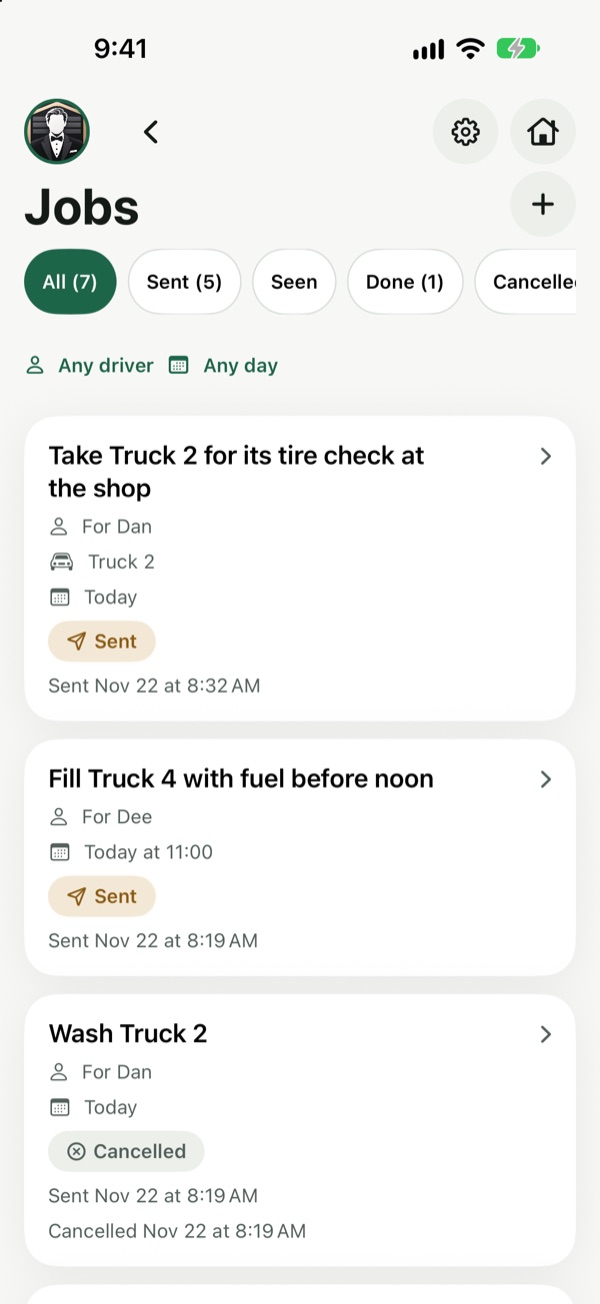
The manager's Jobs list after sending a new job to Dan: “Take Truck 2 for its tire check at the shop”, status Sent.
The manager's Jobs list after sending a job.
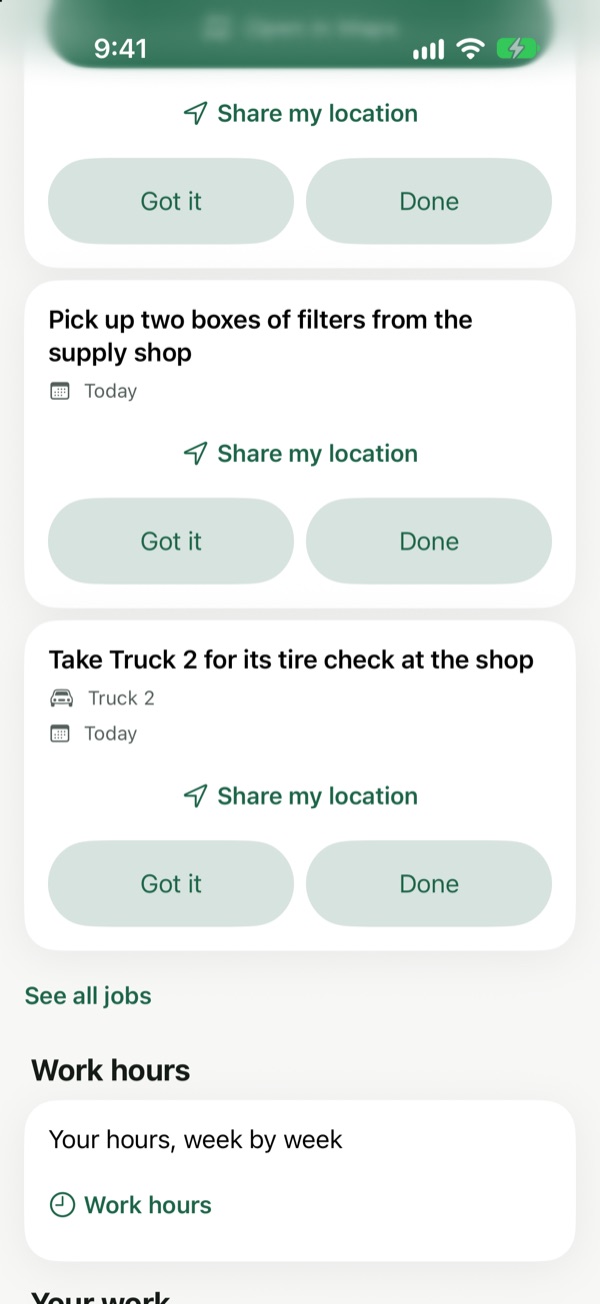
The driver's phone home screen, “Your jobs”, showing the job the manager just sent, with Got it and Done.
The driver sees the job in Your jobs.
The manager sends a job; the driver sees it in Your jobs.

A work hours log

When the business uses it, a driver taps Start my day and End my day, and the app adds up the driver’s confirmed business trips for each day. The driver sees their own week and can correct a figure with a reason, with the original kept beside it. It is a simple record of hours and nothing more.

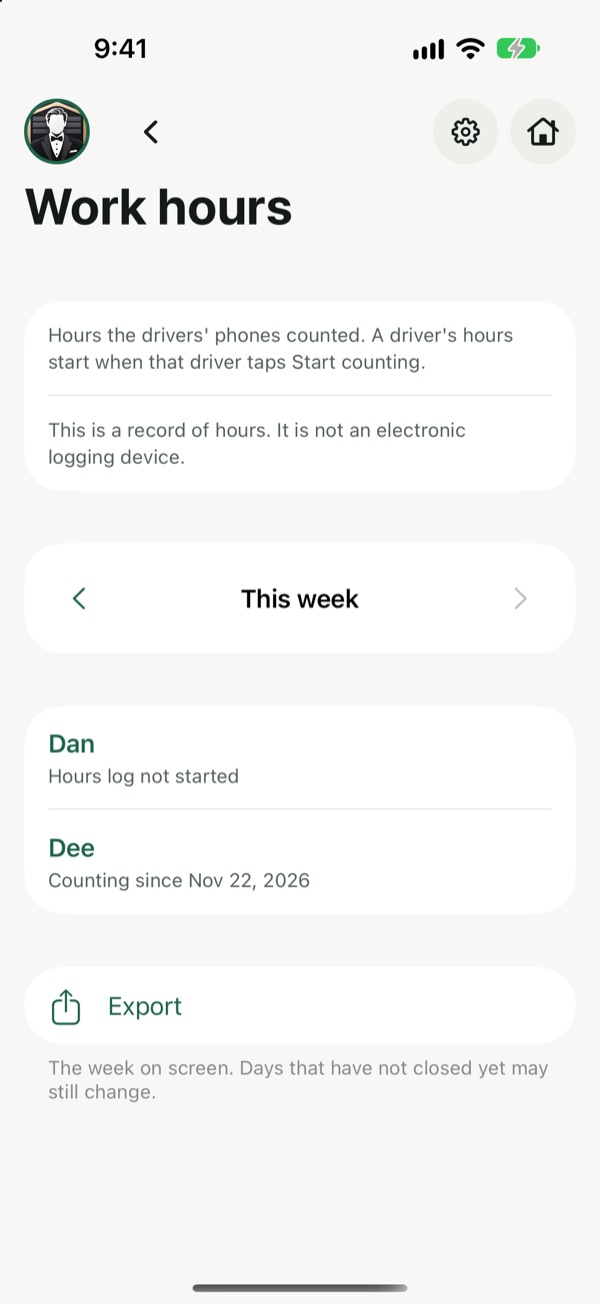
The manager's Work hours screen: this week, Dan's hours log not started, Dee counting since today, and Export.
The manager's Work hours screen.
  • Sharing a location, only if the driver chooses

    A driver can tap Share my location. The phone reads one position, shows the names of the people who will see it, and sends it only after the driver taps Share now. There is no background reading.

  • The vehicle’s QR link

    A sticker kept inside the vehicle opens a page in any phone’s browser, with no app and no account. It has three buttons: Add fuel, Report a problem and Walk-around check. The page shows only the vehicle’s name. Fuel added this way waits for a manager to accept it.

  • Spanish

    The driver’s screens are available in Spanish.

On the phone

What the owner and managers have on the phone

The same app, signed in as the owner or a manager. The screens below use made-up pilot data.

The fleet dashboard

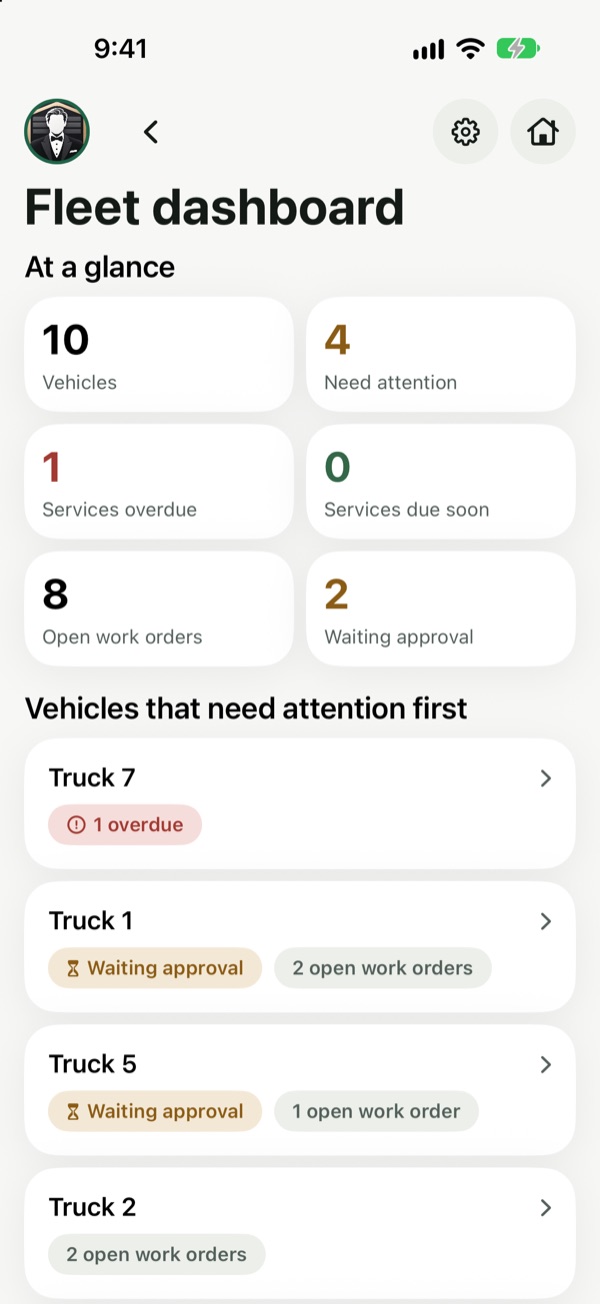
The owner’s phone shows how many vehicles there are, how many need attention, what is overdue, how many work orders are open and how many wait for approval, with the vehicles that need attention first.

The fleet dashboard on the owner's phone: 10 vehicles, 4 need attention, 1 service overdue, 8 open work orders, 2 waiting approval, and the vehicles that need attention first.
The owner’s fleet dashboard.

Work orders

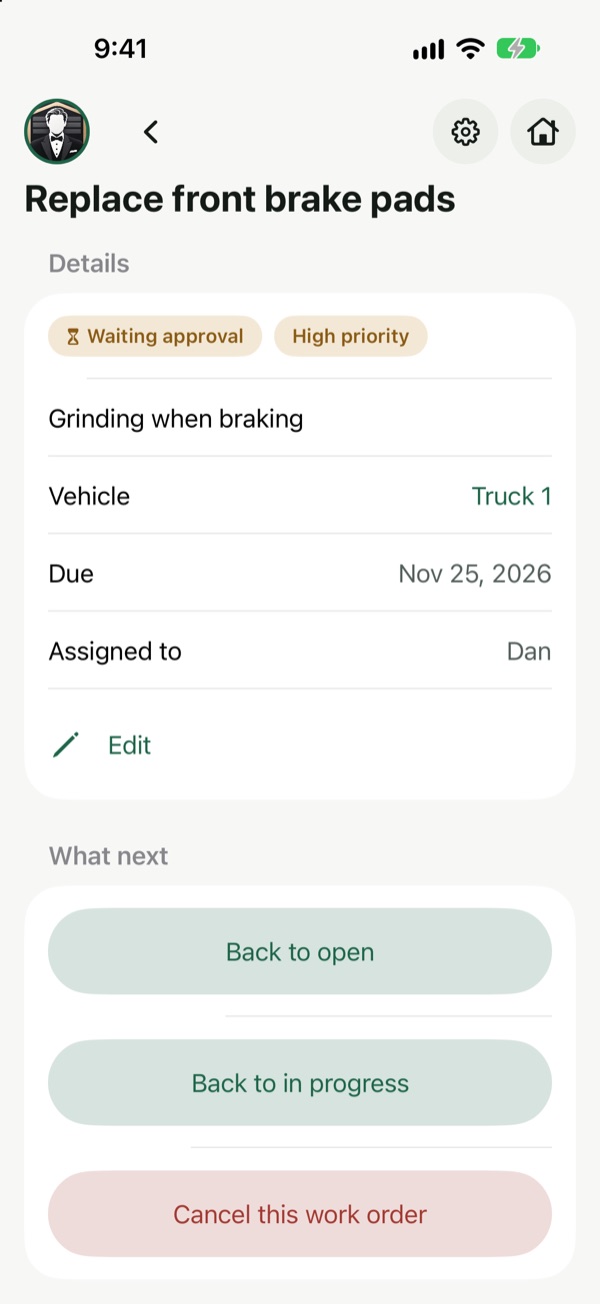
A work order shows its status, its priority, the due date, who it is assigned to and the next steps.

A work order, “Replace front brake pads” for Truck 1: waiting approval, high priority, due date, assigned to Dan, and the next steps.
A work order waiting for approval.

Approving a shop’s quote

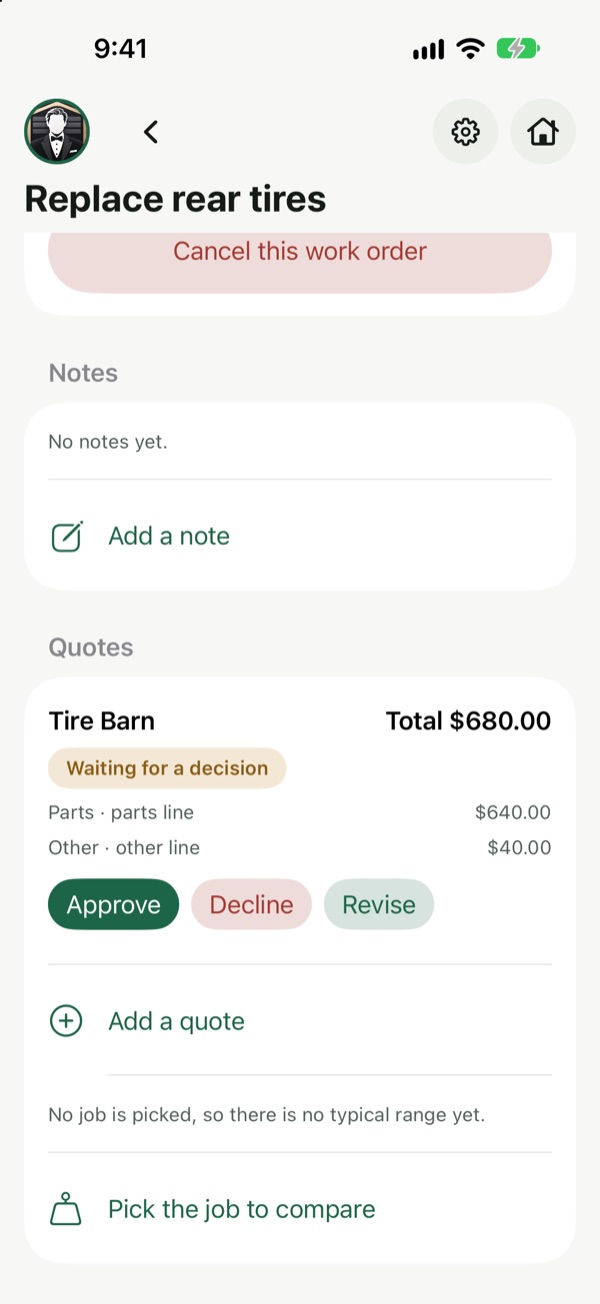
When a shop sends a quote, the owner or a manager sees the amount and can Approve, Decline or Revise it. In the clip, the owner approves a quote and it shows Approved.

A work order with a shop's quote from Tire Barn for $680 with Approve, Decline and Revise buttons.
A shop’s quote with Approve, Decline and Revise.
The owner approves a quote.

A manager limited to one group

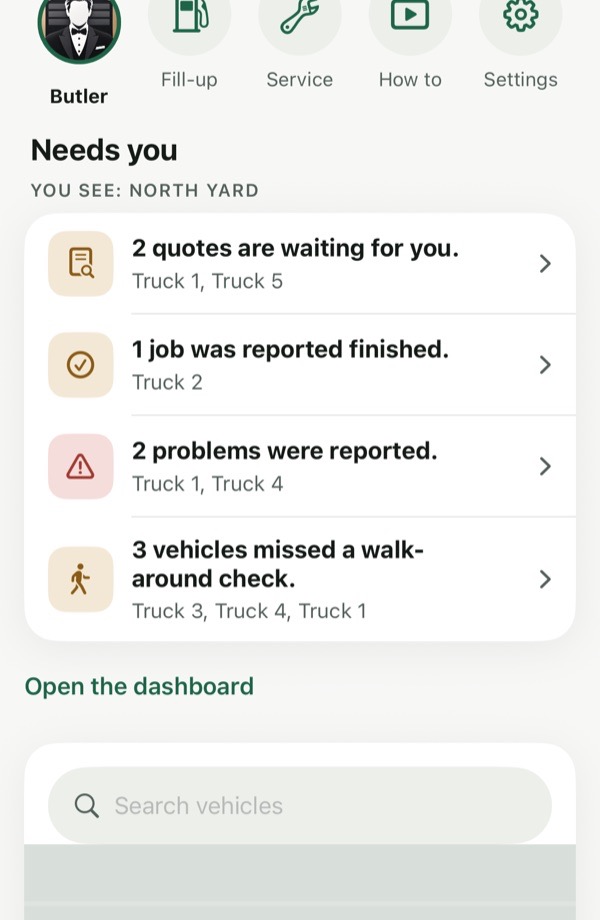
The owner can limit a manager to one group of vehicles. That manager’s home says which group they see and counts only that group’s vehicles.

The manager limited to one group: the home screen says “You see: North yard” and counts only that group's trucks.
The limited manager’s home: “You see: North yard”.
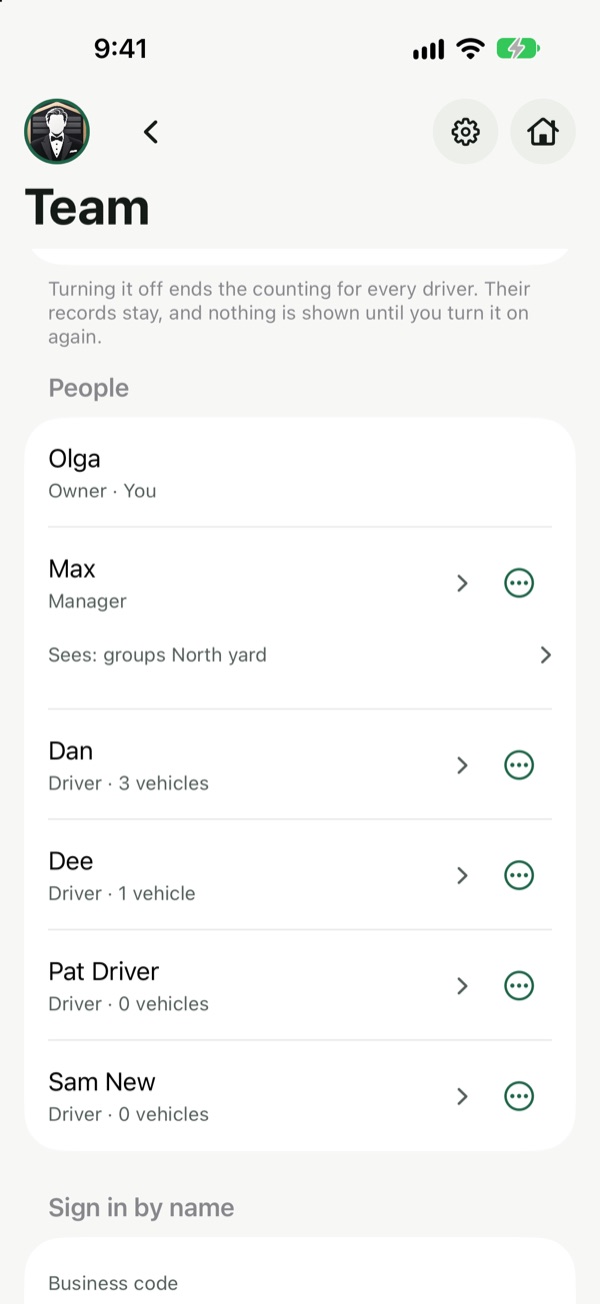
The owner's Team list showing “Sees: groups North yard” for Max.
The owner’s Team list shows which groups a manager sees.

Fleet reports on the phone

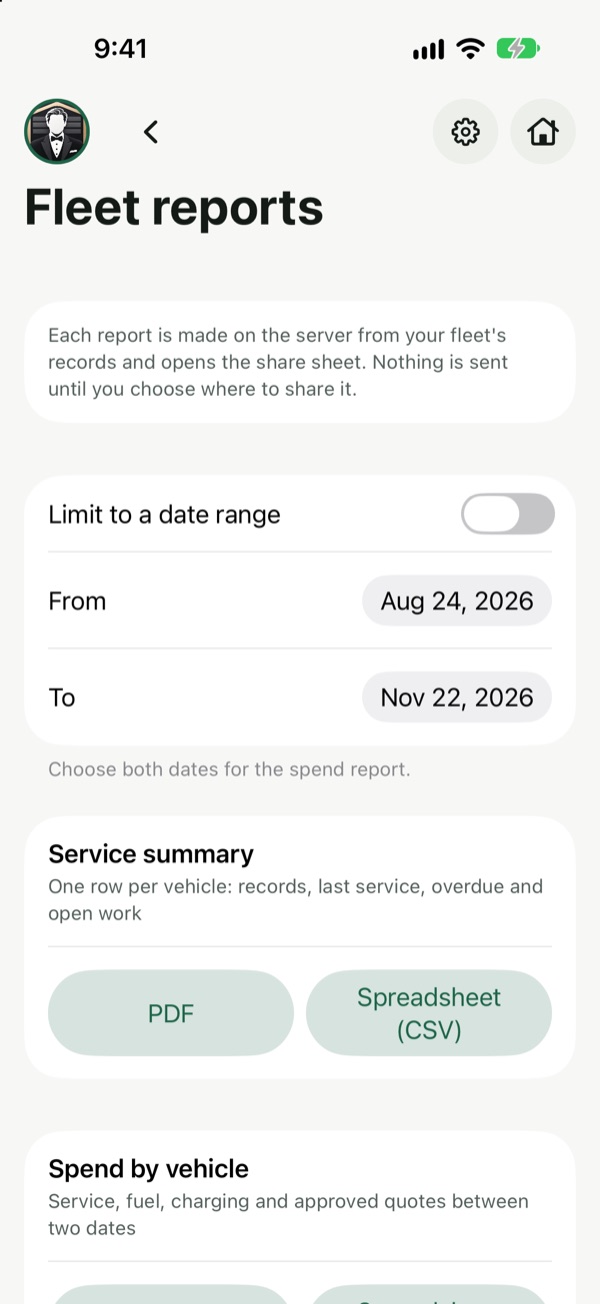
Service summary and spend by vehicle, each as a PDF or a spreadsheet, for the dates you choose.

Fleet reports: service summary and spend by vehicle, each as PDF or spreadsheet, with a date range.
Fleet reports on the phone.

On a computer

What the office has

The owner and the managers use the web console. It opens with a short list of what needs you now: quotes to look at, problems, renewals, and fuel from a sticker to check.

What needs you, on one page

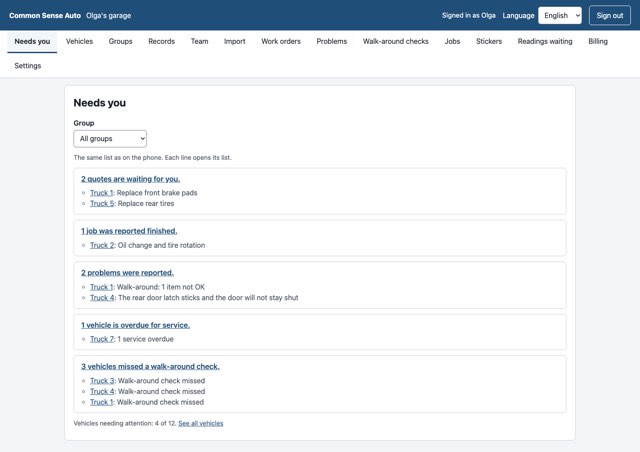
The console opens with a short list of what needs you now: quotes waiting, a finished job, reported problems, an overdue service and missed walk-around checks, each line linking to its list.

The office console's “Needs you” page for a 12-vehicle fleet: quotes waiting, a finished job, reported problems, an overdue service and missed walk-around checks, each line linking to its list.
The console’s Needs you page.
From Needs you to a quote waiting for approval.

Spreadsheet import

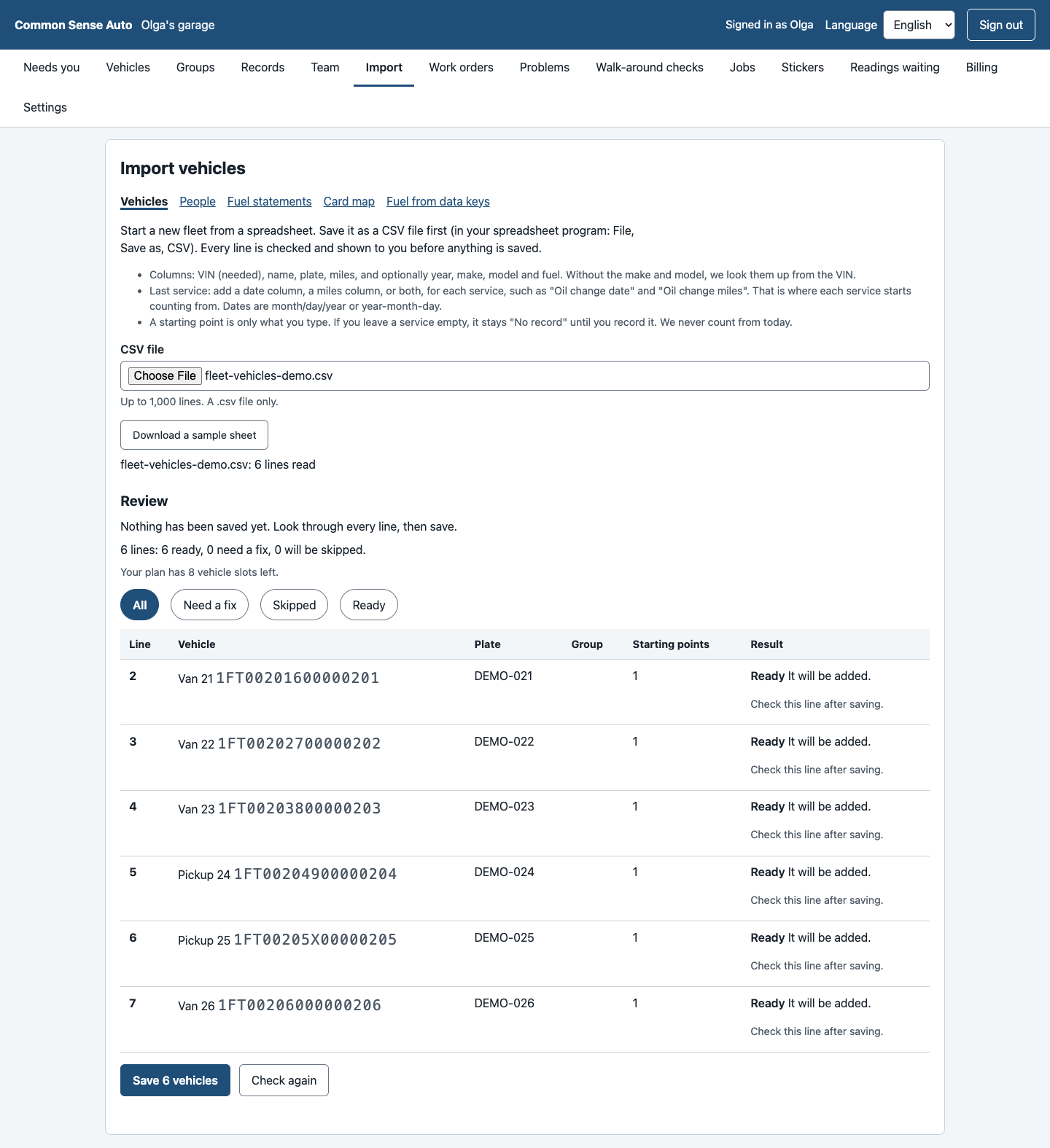
Bring in vehicles and people from a spreadsheet saved as CSV. Every line is judged first, with a plain reason for anything that needs a fix, and nothing is saved until you tap Save. A schedule can start from the last-done date and miles in your sheet.

The Import vehicles page after a spreadsheet of six vans and pickups was chosen: every line is listed with its plate and “Ready, it will be added”, with Save 6 vehicles at the bottom and nothing saved yet.
Import: every line is checked first and nothing is saved yet.

Groups

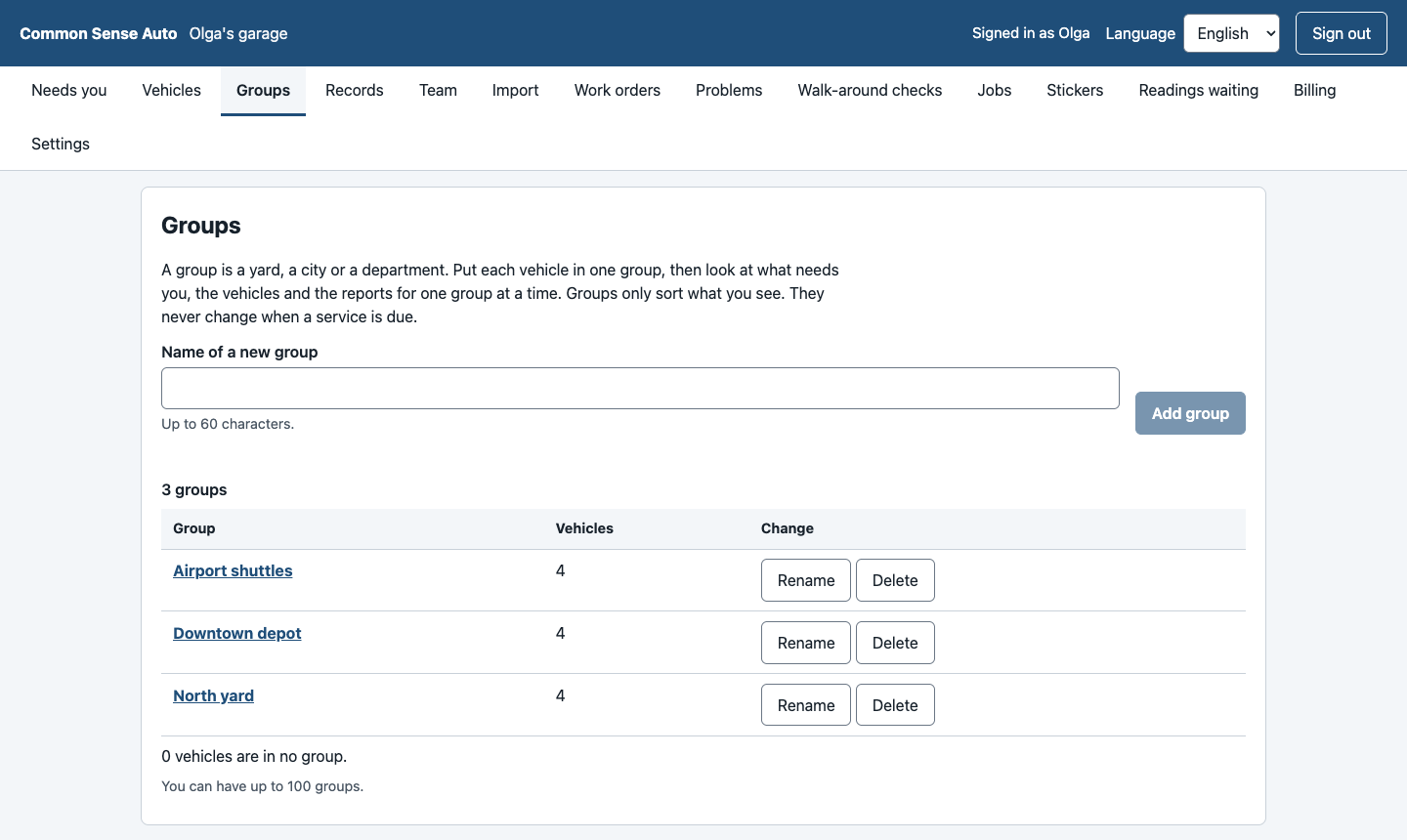
Sort your vehicles into groups such as a yard, a city or a department, and filter the dashboard, the vehicle list and the reports by group. Groups only sort what people see. They never change what is due.

The Groups page listing three groups (Airport shuttles, Downtown depot, North yard) with four vehicles each and rename and delete buttons.
The Groups page.

Cost reports

Spend by vehicle, cost per mile, miles driven, and a year against the year before, plus service summaries and lists of work orders and walk-around checks. Save any report as a spreadsheet file or a PDF, in English or Spanish.

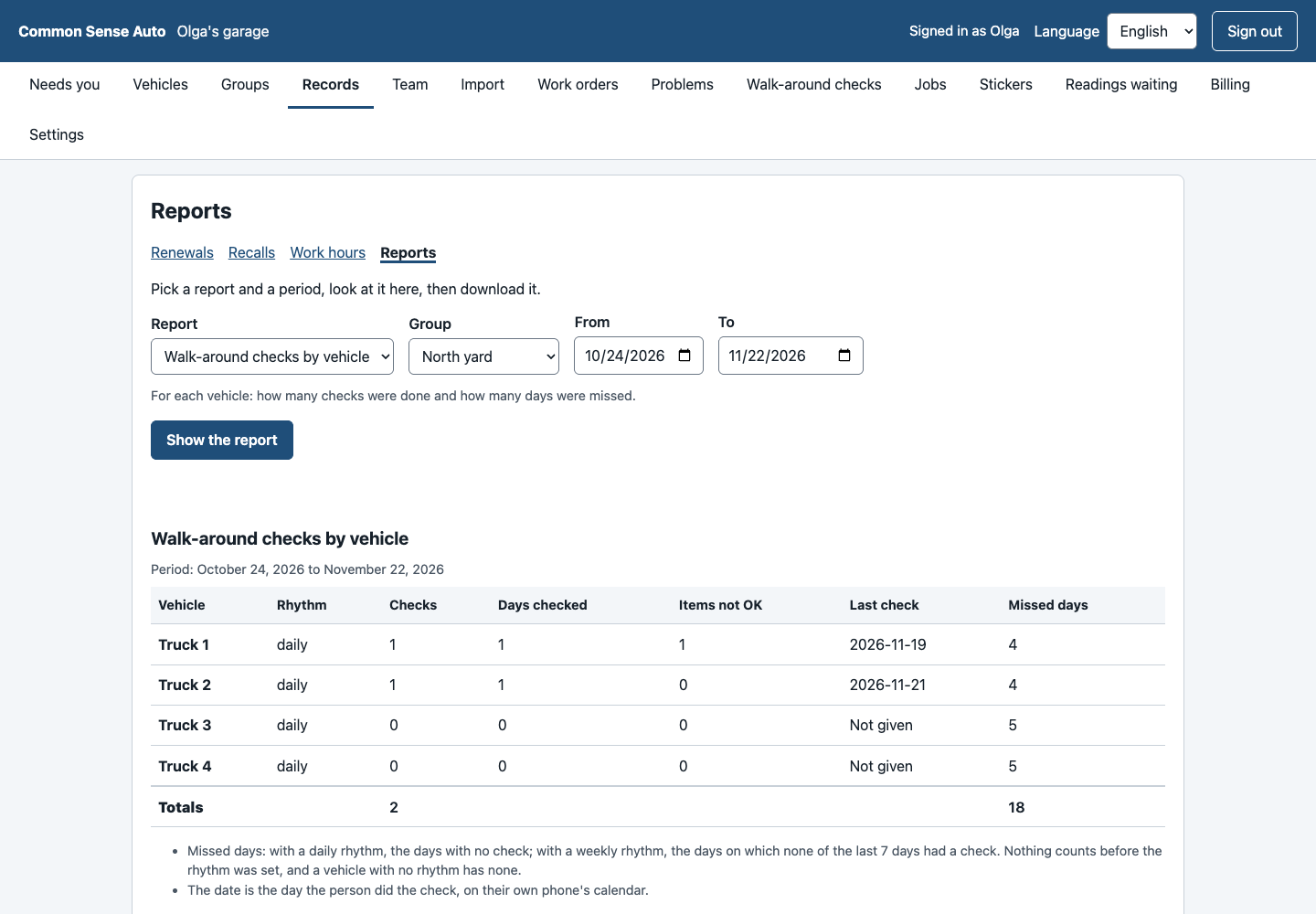
The Reports page showing the walk-around checks by vehicle for the North yard group over the last 30 days, with checks done, items not OK, last check and missed days per truck, and download links below.
A report for one group: walk-around checks by vehicle.
  • Work

    Work orders from the first request to done, with quotes and approvals. Ask up to five shops for a quote on one job, each through its own link. A shop sees only its own quote and what happened to it, never another shop’s name or price.

  • People

    Add drivers and managers, choose each person’s role and, for a driver, the vehicles. The owner can let a manager invite drivers. Each person gets a set-up card to sign in with.

  • Records

    Each vehicle’s service history, fuel and documents, with the walk-around checks and problems beside them.

  • Renewals and reminders

    Registration, insurance, state inspection and permits, each with a due date and a photo of the paper. Once a day the app sends an alert to the vehicle’s drivers, the managers and the owner for what is due or overdue.

  • Fuel statement import

    Bring in a statement file from your fuel card (CSV). A preview shows what is ready, what needs a fix and what will be skipped, and saves nothing until you say so.

  • The data key

    A key you make and can revoke at any time, so your own tools can read your fleet’s data. And change notices, a short message sent to an address you choose when something changes, so your own system hears about it at once.

  • Readings from outside links wait for you

    A mileage reading that arrives through a shop’s link or any other outside link never becomes the vehicle’s reading until the owner or a manager confirms it.

How sign-in works

A business signs in with a business code, a name and a password. A driver does not need an Apple account or an e-mail address.

  1. The owner adds each person with a label, a sign-in name (a phone number, an e-mail address or a user name) and a role.
  2. The app gives the owner a set-up card: the business code, the name exactly as it must be typed, and a set-up code that works once, for seven days. The owner hands it over. Our server sends nothing.
  3. The person types the business code, their name, the set-up code and a new password, 12 to 128 characters.
  4. After that they sign in with the business code, their name and their password.
  5. A forgotten password is a new set-up code. The old password stops working and every sign-in of that person ends.

Privacy, in the app’s own words

These are the sentences the app itself uses.

  • Your trips are private: the owner and managers don’t see them, but they do see your work hours if your business uses them. The distance you travel is added to the vehicle’s odometer.
  • Sharing a location is the driver’s choice, once at a time. It shows “Where the driver’s phone said they were. We do not check it.” It is kept only in the server’s memory, never written down, and it is gone after 24 hours or when the driver taps Stop sharing.
  • “Is it safe to drive?” is always the driver’s own answer, shown as theirs. It is never our judgement.
  • A job’s text, including its address, is sent to the driver’s phone through Apple’s notification service.
  • An alert carries the vehicle’s name and what happened. It never carries an amount.
  • A photo taken for a problem or a renewal does not keep its location.

Read the privacy notice for how this website handles information.

What Fleet does not do

  • It does not follow your vehicles. A location is shared only when a driver chooses to share it.
  • It does not connect to a fuel card. You save a statement file from your card and bring it in.
  • Work hours are a simple record of hours. They are not a legal log.
  • An estimate or a reading is a guide for people to check. It is not a quote.

Price

$4 a vehicle a month

$40 a vehicle a year

For 5 to 1,000 vehicles. The price is the same at every size. Sales tax may be added. The owner pays, on the web or in the app. See all the plans.

Fleet Custom

Running a fleet? Tell us about it.

Fleet Custom is for 5 to 1,000 vehicles. It is $4 a vehicle a month, or $40 a vehicle a year: the same price for every size of fleet. It includes everything in Fleet 20. We set up each fleet personally. Tell us about your business and we will write back. Read what Fleet does.

  • $4 a vehicle a month
  • $40 a vehicle a year
  • 5 to 1,000 vehicles
  • Everything in Fleet 20
  • Managers and drivers, work orders and fleet reports
  • A data export and a data key for your own tools
  • The office computer, for work, people, records and reports

Write to us

Email krasi@commonsenseapps.net and tell us your company, how many vehicles you have and how to reach you.

Email us about Fleet Custom

Tell us about your fleet

From 5 to 1,000.

We email what you write to us and use it only to reply. We do not store it anywhere else. If sending does not work, we open your email app instead.

No email app? Write to krasi@commonsenseapps.net